
New Employee Onboarding
1Set Up Homebase (Time & Pay)
Homebase is how your work hours are tracked and how you get paid.
What to do:
- Open the Homebase invite email
- Click Accept Invite
- Create your password
- Log in successfully

2Once Set Up, You Will Use Homebase To:
- Clock in when you start working
- Clock out when you stop
- Clock out and back in for lunch
When you are ready to start work each day, go to app.joinhomebase.com
Homebase Onboarding
1Login
- Go to Homebase and log in with your credentials.
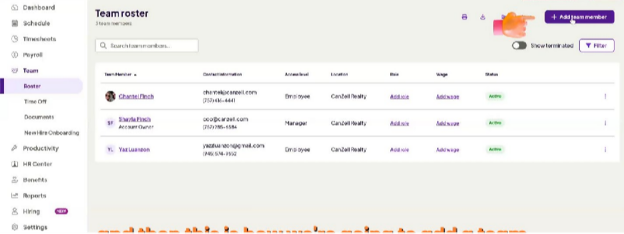
2Navigate to Team Roster
- Click Team → Roster.
3Add a New Team Member
- Click Add Team Member (top-right corner).
- Enter employee details:
- Name (e.g., Tim Medina)
- Phone number
- Check the box Invite employee to Homebase.
4Assign Role and Salary
- Select the role (e.g., Admin Assistant).
- If salaried, calculate the hourly rate: Hourly Rate = Annual Salary ÷ (52 weeks × 40 hours)
- Example: $60,000/year → $28.84/hour.
- Set the Start Date.
5Send Invite
- Click Add Team Member.
- The employee receives an email to join Homebase.
6Employee Time Tracking Instructions
- Log in to Homebase daily.
- Navigate to Time Sheet → Add Time Card.
- Enter:
- Name
- Clock-in time
- Lunch break (if applicable)
- Clock-out time
- Submit time card at the end of the week for payroll processing.
Slack Onboarding
1Login
- Open Slack → Navigate to Entree Business Network.
2Invite Employee
- Click Invite People.
- Enter the employee's email address.
3Select Channels
- Assign channels based on the role, e.g.:
- #admin
- #time-off
- #todo-lists
- #finish-line
4Send Invite
- Click Send → Done.
- Employees have 30 days to accept the invite and log in.
GoHighLevel Onboarding
1Login
- Go to GoHighLevel → Ensure the correct account is selected (if multiple).
2Add New User
- Click Settings (bottom left) → Team → Add User (top-right).
- Enter employee details:
- Name (e.g., Tim Medina)
3Assign User Type & Permissions
- Select Agency for full access.
- Select Admin Access.
- Restrict access to sub-accounts if necessary.
- Turn off features the employee does not need.
4Save Changes
- Click Save.
5Delete User (If Needed)
- Click the Trash Can next to the employee → Confirm deletion.
- Ensure all steps are completed before the employee's start date.
- Confirm that the employee has received all invites and can log into Homebase, Slack, and GoHighLevel.
- Keep a checklist to track onboarding completion for each employee.
Operating the Canzell Marketing Program
1Program Overview
The Canzell Marketing Program is a monthly engagement initiative. Participants earn $0.25 per account per day for interacting with content on designated social media accounts.
- Number of Accounts: 12
- Daily Engagement Requirement: 1 like + 2 comments per account
- Monthly Maximum Earnings: $90 (based on 12 accounts × 30 days × $0.25)
2Accounts and Platforms
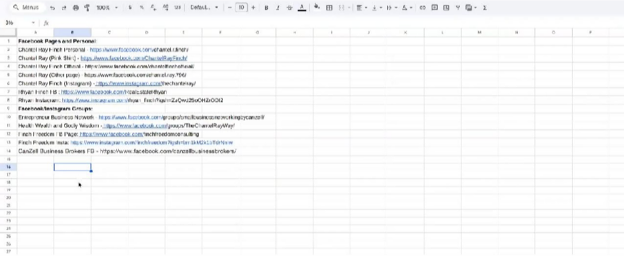
Participants are required to engage with the following platforms for each profile:
- [Other accounts as specified – update with links]
3Daily Engagement Procedure
1. Login
- Access your assigned Facebook account (or other platforms as instructed).
- Ensure all 12 program accounts are available for engagement.
2. Engage with Posts
- For each profile:
- Like one post
- Comment twice: one comment can be an emoji; one comment should be text-based (e.g., "Sign me up" or relevant content)
3. Repeat for All Profiles
- Complete the above steps for all 12 accounts daily.
- Ensure posts engaged with are different each day.
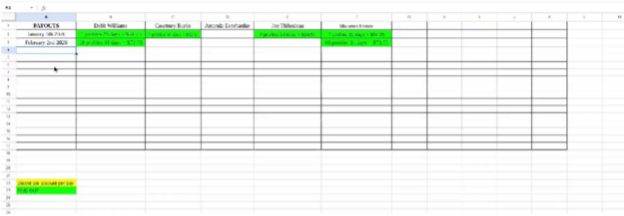
4Tracking Engagement and Payouts
Tracking
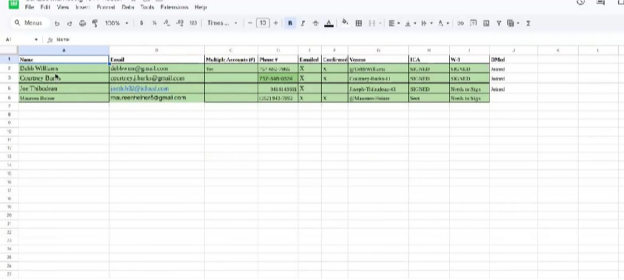
- Maintain a record of daily engagement for all participants.
- Use the tracking tab to record completed actions.
Payouts
- Paid on the first business day of each month.
- If the first day falls on a weekend, payouts occur on the next business day.
- Each participant receives $0.25 per account per day.
5New Participant Onboarding
1. Sign-Up
- New participants express interest in joining the program.
2. Documentation
- Send W-9 form and signature pages for tax and payout purposes.
- Ensure all required information is received before adding them to the engagement tracking list.
3. Adding to System
- Record new participants in the engagement tab.
- Begin tracking their daily activity and prepare for payout.
6Tax and Annual Procedures
- At the end of the year, ensure all participant W-9 forms are collected.
- This prevents the need to chase participants for tax information during annual reporting.
How to Clock In and Clock Out
1Morning Routine
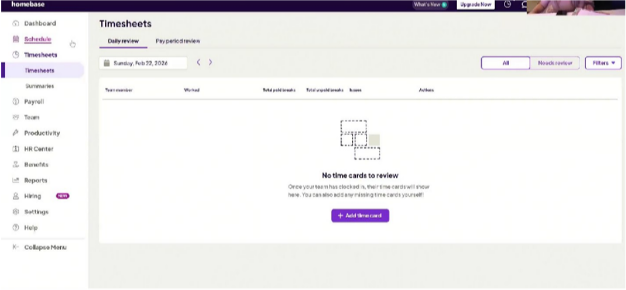
Step 1: Clock In (Homebase)
- Log in to Homebase at the start of your workday.
- Clock in immediately upon beginning work.
- Ensure your time is accurately recorded.
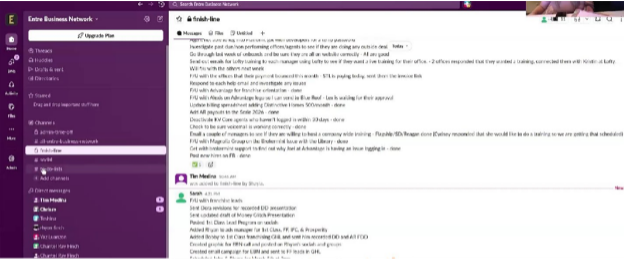
Step 2: Update Slack – To-Do List Channel
- Open Slack.
- Go to the #to-do-list channel.
- Post your planned tasks for the day — include all current priorities and be clear and specific.
- Begin working on the listed tasks.
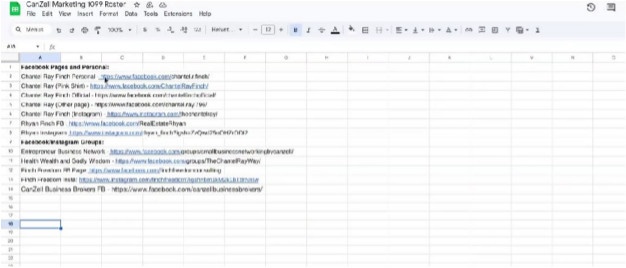
2Daily Priority Task – Marketing Program
The first task every day is managing the marketing program.
Daily Marketing Actions
- Open all 12 designated marketing accounts/sites.
- For each account: find a recent post and leave
- 1 Like
- 2 Comments — one emoji comment and one regular written comment
- Repeat for all 12 accounts.
3Midday Procedure (Lunch / Stepping Away)
Clocking Out for Lunch
- Clock out in Homebase when taking lunch.
- Clock back in when returning.
Slack Status Update
- Post in Slack: "Taking lunch," "Be right back," or a similar message.
4Throughout the Day
- Continue working through your #to-do-list items.
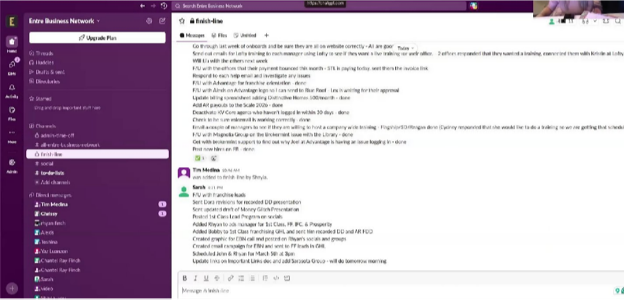
- As tasks are completed, you may post them immediately in #finish-line — this reduces end-of-day workload and keeps management updated in real time.
5End-of-Day Routine
Step 1: Update Slack – Finish Line Channel
- Go to #finish-line.
- Post all completed tasks for the day — include marketing account management (if not already posted) and all finished items.
- Visibility of completed work
- No need for follow-ups asking what was done
- Clear tracking of team productivity
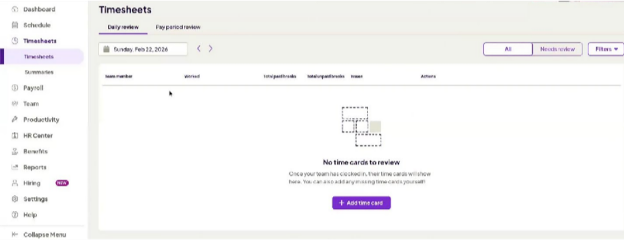
Step 2: Clock Out (Homebase)
- Return to Homebase.
- Clock out for the day.
- Confirm: start time, end time, lunch duration, and total hours worked.
Managing User Roles and Permissions
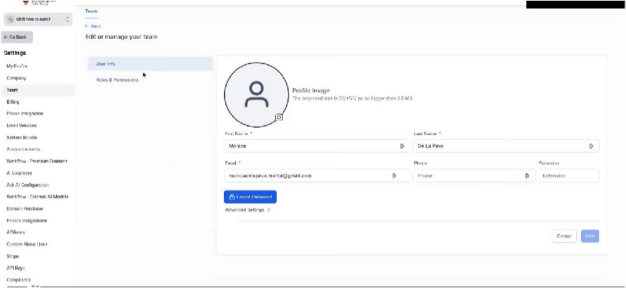
1Access Roles and Permissions
- Log in to the admin account.
- Navigate to Roles and Permissions in the main menu.
2Update User Role
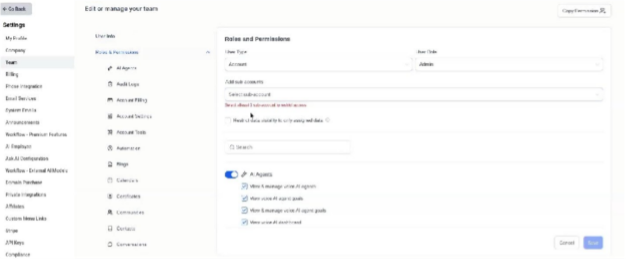
- Locate the user whose role you want to modify.
- If you want to change a user from Admin to User for a specific sub-account:
- Select the User Role dropdown
- Change the role from Admin to User
3Add a Sub-Account
- Click Add Sub-Account.
- Search for the user by name (e.g., "Monica").
- Select the appropriate account from the search results.
- Click Save to grant access.
4Verify Access
- Scroll through the user list to confirm the role changes.
- Ensure the user has access to the correct accounts:
- Primary account (as Admin or User)
- Sub-account (as User or Admin, depending on the settings)
- Users can have multiple roles across different sub-accounts.
- Always double-check the email and account before saving to prevent access errors.
How to Send an NDA for Signature Using HelloSign (Dropbox Sign)
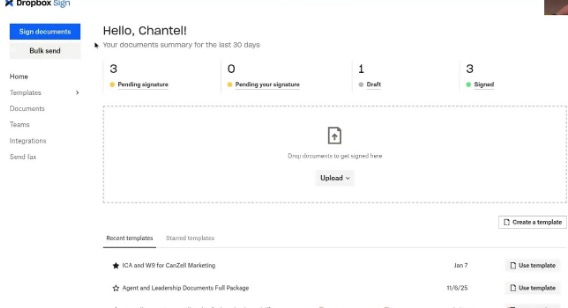
1Log In and Upload the NDA
- Log in to HelloSign (Dropbox Sign).
- Click "Sign Documents."
- Select "Upload."
- Navigate to the saved NDA file: Confidentiality Disclosure Agreement
- Click Open.
- Once the document loads, click Next.
2Add Signer Information
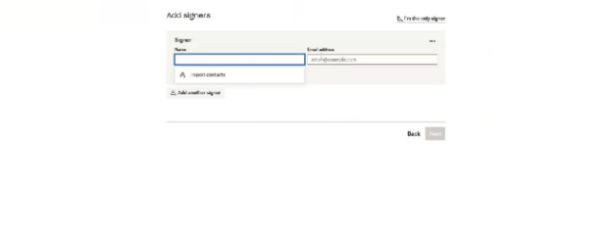
- In the Signer Email field, enter the buyer's contact email (from the BizBuySell inquiry).
- In the Signer Name field, enter the buyer's full name (e.g., Tyler Pearson).
- Do NOT delete the email address.
- Click Next.
3Place Required Fields in the Document
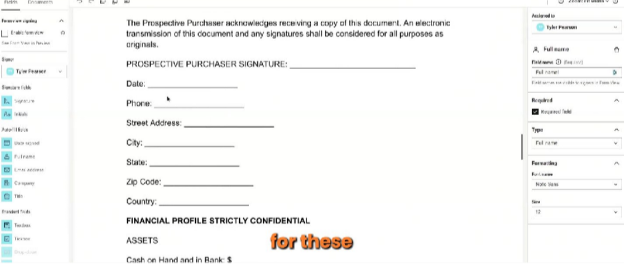
You will now assign fillable fields to the document.
A. Name Field
- Place a Full Name field where the signer needs to enter their first/full name.
B. Contact Information Fields
Use Text Box fields for:
- Phone number
- Street address
- City
- State
- ZIP code
- Email address
- Any financial qualification fields (if applicable)
C. Date & Signature Fields
- Add a Date field in the appropriate section.
- Add a Signature field where required.
- Ensure all required sections are assigned to the signer.
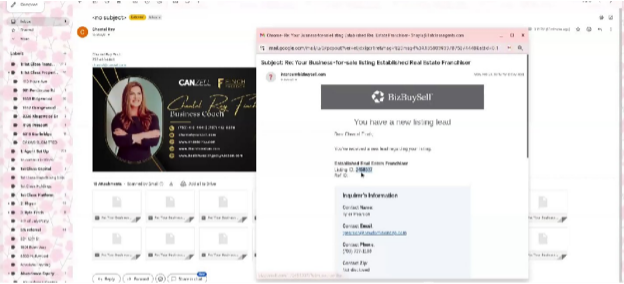
4Insert Listing ID (Important Step)
This step ensures proper tracking without disclosing confidential information.
- Locate the section labeled Listing Number in the NDA.
- Switch the signer role to "Me" (if needed).
- Insert a Text Box in the Listing Number section.
- Enter the specific Listing ID from BizBuySell — this identifies which listing the buyer is inquiring about.
- Switch the signer role back to the buyer if necessary.
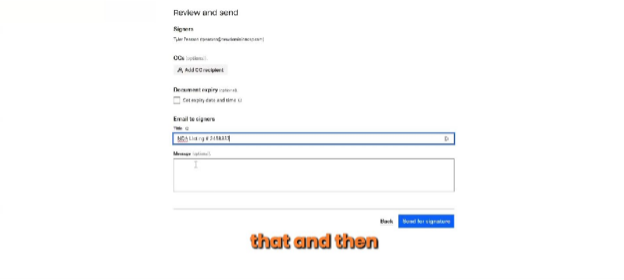
5Review and Send
- Click Next.
- In the message section, enter your subject and message.
- Click Send for Signature.
Message ExamplePlease sign at your earliest convenience.
6Confirm Submission
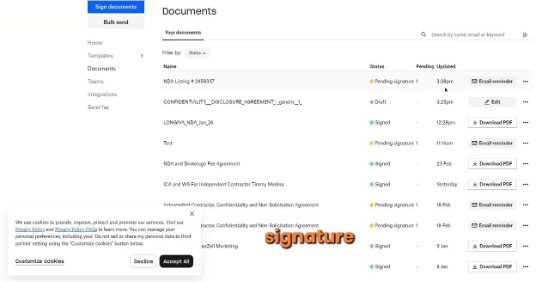
- You will be redirected to the homepage.
- Verify:
- A notification banner confirms the signature request was sent
- The document appears as "Pending – 1 Signature"
- Timestamp reflects the date and time sent
- Do not disclose any business information until the NDA is fully signed.
- Always confirm the correct Listing ID before sending.
- Ensure all required fields are properly assigned to avoid delays.
- This process is specifically for BizBuySell leads but may be adapted for other sources if needed.
Using Quo (OpenPhone) to Respond to Leads
1Collecting the Lead
- Access the lead from your social media platform (e.g., Facebook ads).
- Copy the following information:
- First Name
- Last Name
- Phone Number
- Email (if available)
2Initiating a Conversation in Quo
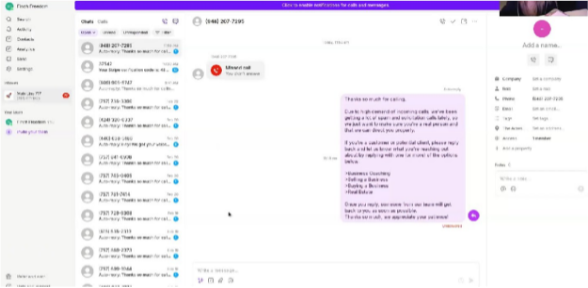
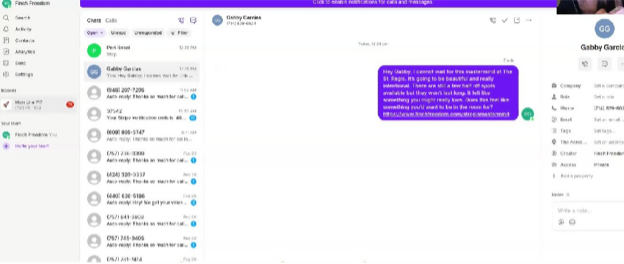
- Open Quo.
- Click "Send a Message" to start a new conversation.
- Paste the lead's phone number.
- Add their first name.
- Click "Create" to start the conversation.
3Preparing Your Message
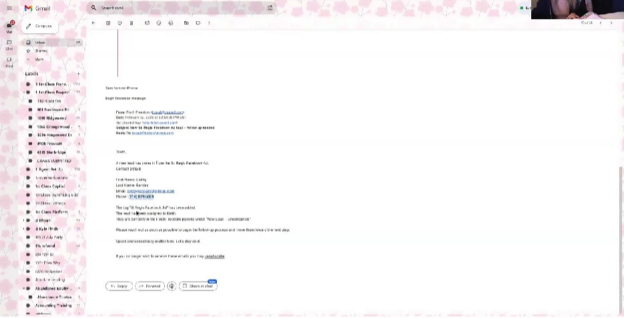
- Go to Canzell Cloud → Responses.
- Select the appropriate lead response based on the ad or campaign (e.g., St. Regis Mastermind).
- Review the rules for messages:
- No duplicate texts — each message must be unique
- Add the lead's first name
- Short and conversational — end with a question to encourage response
- No dashes — replace with dots, commas, or rephrase
- Friendly tone — avoid overly salesy language; text like a friend
4Customizing the Message
- Insert the lead's first name at the beginning.
- Paste the pre-written verbiage from Canzell Cloud.
- Insert the relevant link at the end of the message (sign-up or info page).
- For subsequent leads from the same campaign, alter the message slightly to avoid duplication:
- Reword sentences
- Change adjectives or phrasing
- Use ChatGPT if needed to create variations
5Sending the Message
- Review the message for personalization and clarity.
- Ensure the link is included at the end.
- Click Send.
6Follow-Up
- If a lead does not respond within 1–2 days:
- Send a friendly GIF via Quo to gently remind them
- Avoid messages that could seem rude or pushy
- Example: a funny "call me" GIF
- If a lead responds with "stop", do not send additional messages.
- For leads that respond positively, continue the conversation:
- Ask why they're interested
- Provide the corresponding link as needed
7Handling Incoming Calls
- Quo bot answers initial calls automatically.
- Respond personally when needed: ask the caller about their inquiry and provide the relevant link.
- Personalize each message (use first name).
- Avoid duplicate messages.
- Keep messages friendly, short, and conversational.
- End with a question to encourage engagement.
- Replace dashes with other punctuation to avoid spam detection.
- Respect requests to stop messaging.
Slack
1When You Get Your Slack Invite
- Open the email
- Join the workspace
- Set your password
- Add your full first and last name
- Upload a professional profile photo
- Once you're in, keep Slack open while you're working
2To-Do List at the Start of the Day
This is where you share what you plan to work on today.
Each morning, after clocking in:
- Go to the To-Do List channel
- Post a list of what you plan to work on that day
3Admin Time Off (When You Step Away)
This channel lets the team know when you're not at your computer.
Post when:
- You're taking lunch
- You're stepping away
- You'll be unavailable for a bit
What to include:
- That you're stepping away
- About how long you'll be gone
4Finish Line (End of Day)
This is where you share what you completed today.
Before you log off:
- Go to the Finish Line channel
- Post the tasks you finished that day
- Only include things that are fully done
Dashlane
1Getting Set Up in Dashlane
You will receive an email invite to Dashlane.
What to do:
- Open the Dashlane invitation email
- Accept the invite
- Create your Dashlane master password
- Log in successfully
2What Dashlane Is Used For
Dashlane stores login information for tools you may need, such as:
- Software platforms
- Websites
- Shared accounts
- Business tools
If you are given access to a system, the login details may already be saved in Dashlane.
Process for Managing Daily Facebook Group Posts
Daily Responsibilities Overview — each group must:
- Receive at least one post per day
- Include either value-driven content OR promotional content related to our services
- Have active engagement (likes/comments)
- Be moderated (approve/decline posts)
- Have membership requests reviewed
1Create Daily Post Content
A. Identify Content
- Look for posts you like (inside or outside the group).
- Copy the link or wording if useful.
- Use ChatGPT to:
- Reword existing verbiage
- Create new captions from a graphic
- Generate a graphic using existing verbiage
- Improve clarity or engagement tone
B. Finalize Post — ensure:
- Messaging is clear
- Grammar is correct
- Graphic matches the caption
- Tone fits the specific group
2Post in Each Group
Posting Steps:
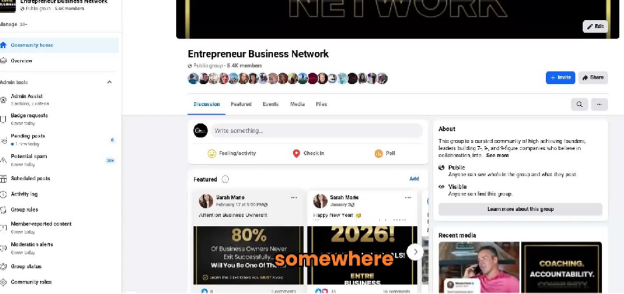
- Enter the group.
- Upload the graphic (if applicable).
- Paste finalized caption.
- Proofread.
- Click Post.
3Tag Group Members
Immediately after posting:
- Comment: @everyone
- This notifies all group members and boosts visibility. Ensure tagging aligns with group settings and policies.
4Engage with Other Members' Posts
Daily engagement checklist:
- Scroll through recent posts.
- Like relevant posts.
- Leave thoughtful comments.
- Support posts from team members (e.g., Ryan, Chantel, business page).
- Engage with non-team posts to boost group activity.
Goal:
- Show consistent presence
- Encourage community participation
- Increase algorithm visibility
5Moderate Group Content
For groups you manage (especially local groups like Sarasota Business Network):
A. Approve posts that:
- Are relevant to business owners
- Are local (if group is location-specific)
- Provide value
- Are not overly sales-heavy
B. Decline posts that:
- Are unrelated (e.g., karaoke events not business-related)
- Are overly "servicey" or aggressive sales posts
- Do not align with group purpose
- Appear spammy
All Things Outlook
1Email Signature Flares
- Go to canzellportal.com
- Search for email signature flares and click the corresponding button.
- Review and ensure that your information is correctly input (first name, last name, email, phone number, title, etc.)
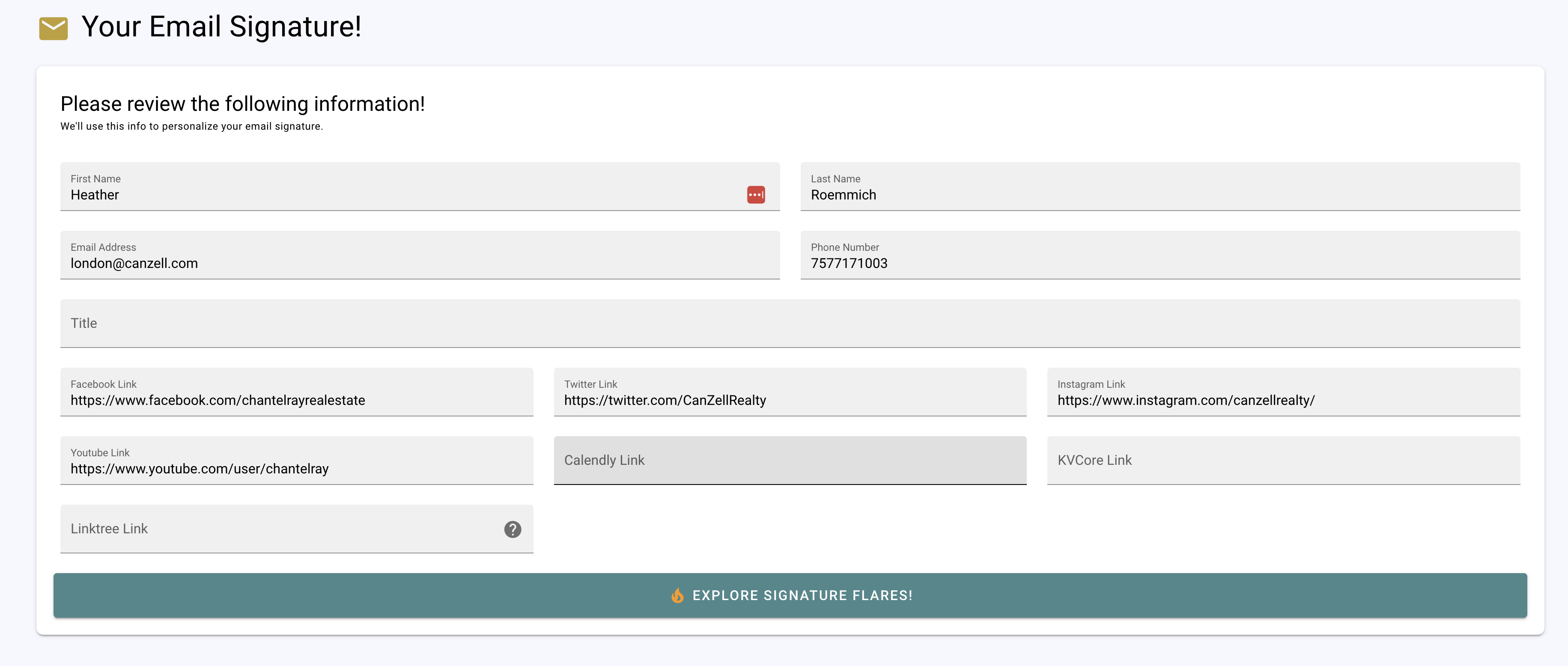
- Click "Explore Signature Flares"
- Choose the signature flare that you like and click the green button to copy the email flare to your clipboard
2Resetting Passwords & Updating the Authenticator
- Go to the Exchange Admin Panel and click on Active Users.
- Find the user whose password you want to change. Click Reset password. You can select the option where you set the password, and you can check or uncheck the box that will require them to change it when they log in. Send them the new password.
- To update the authenticator: scroll down the left side of the admin page and click All admin centers → Identity → Users, and find the user you want to update. Click Authentication method, update the phone number and email address, then click Save.
3Adding Users to the "Everybody" Email Group
1. Access Teams and Groups
- In the admin center, go to Teams and Groups.
- Select Active Teams and Groups.
2. Locate the "Everybody" Group
- Search for the "Everybody" group.
- Click on the group name to view its details.
3. Add New Members
- Go to the Membership section.
- Click Add Members.
- Search for the newly invited guest user.
- Confirm their addition to the group.

Teams & Zoom
1Removing the Teams Link from Calendar Invites
When sending out a calendar invite, you will want to remove the option to send a Teams link — since we use Zoom and it confuses people.
Make sure your settings are correct. Once your settings are correct, you won't have to worry about it again.
- While in the online option for your email in Outlook, click the gear icon in the top right corner, then open Outlook Settings.
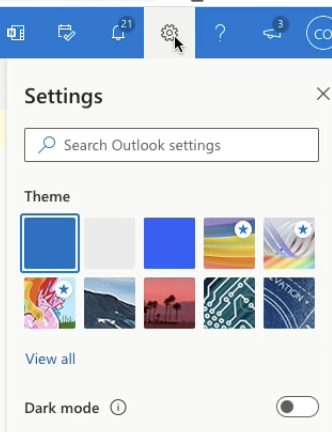
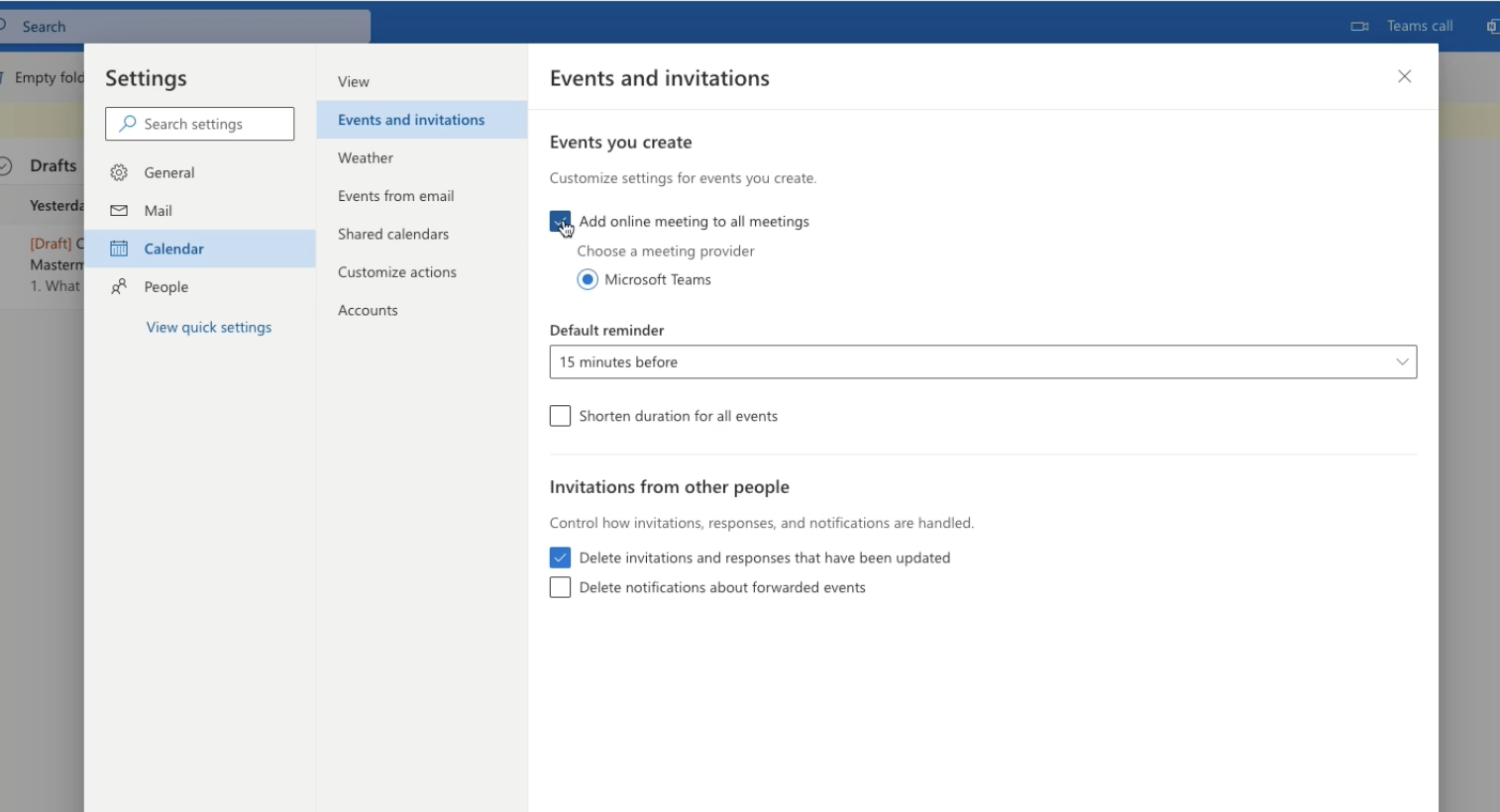
- Once in, click Calendar on the left, then "Events and Invitations."
- Make sure the box next to "Add Online Meeting to all Meetings" is UNCHECKED.
2Accessing and Managing Zoom Recordings
Step 1: Log in to Zoom
- Go to Zoom and log in using the master Zoom account credentials.
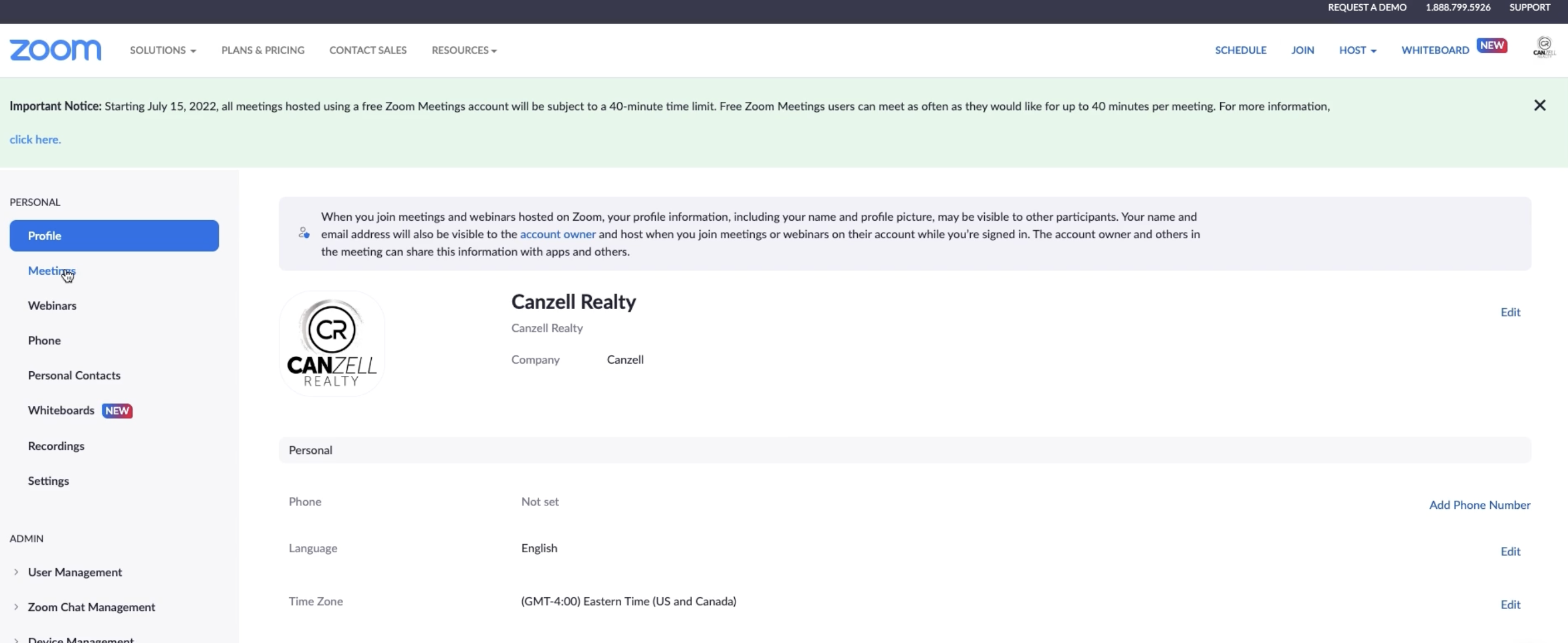
- Once logged in, click your profile icon in the top left corner.
- Select My Profile from the dropdown menu.
This will take you to the backend where all recordings, transcripts, and account settings are managed.
Step 2: Access Recordings and Transcripts
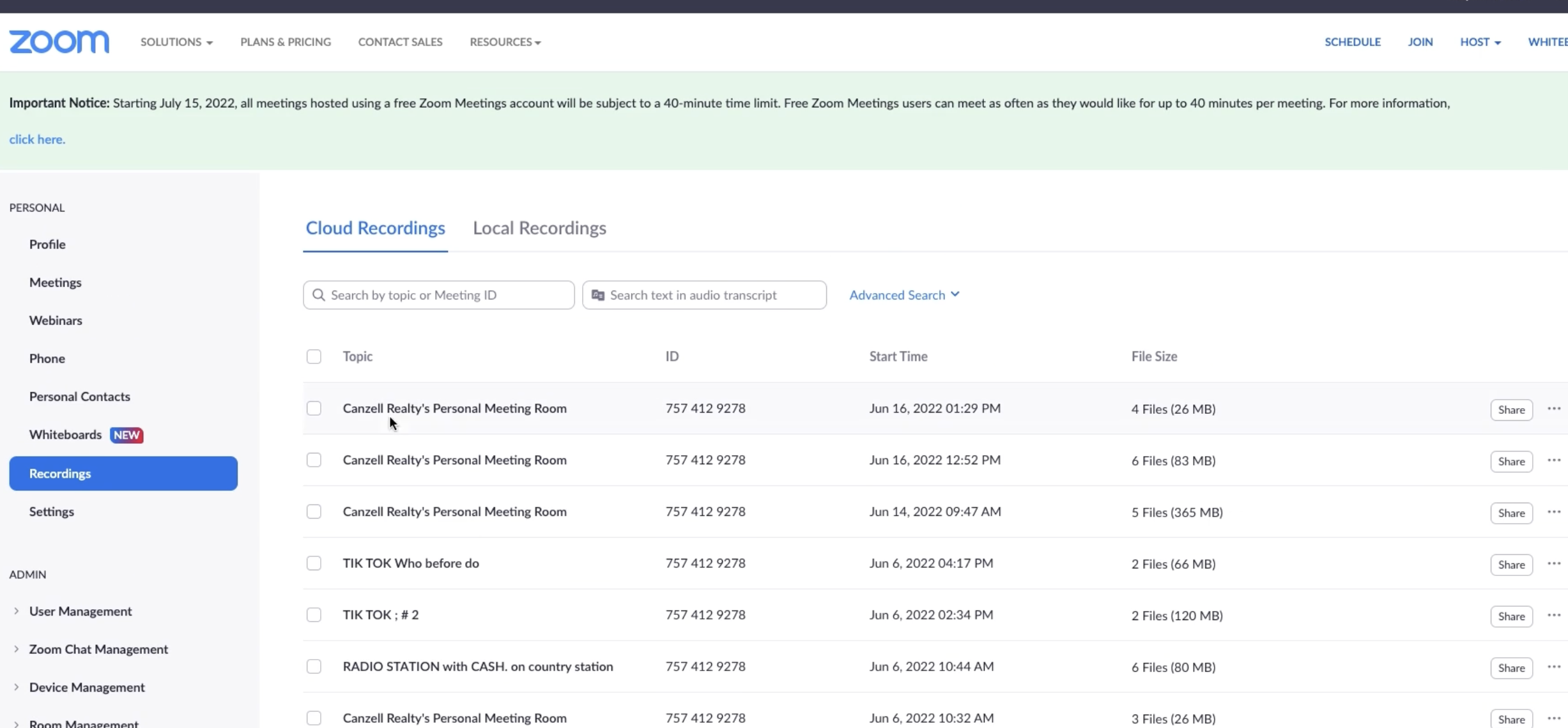
- On the left-hand menu, locate and click Recordings (or Recordings and Transcripts depending on your Zoom interface).
- This opens a list of all recordings associated with the account.
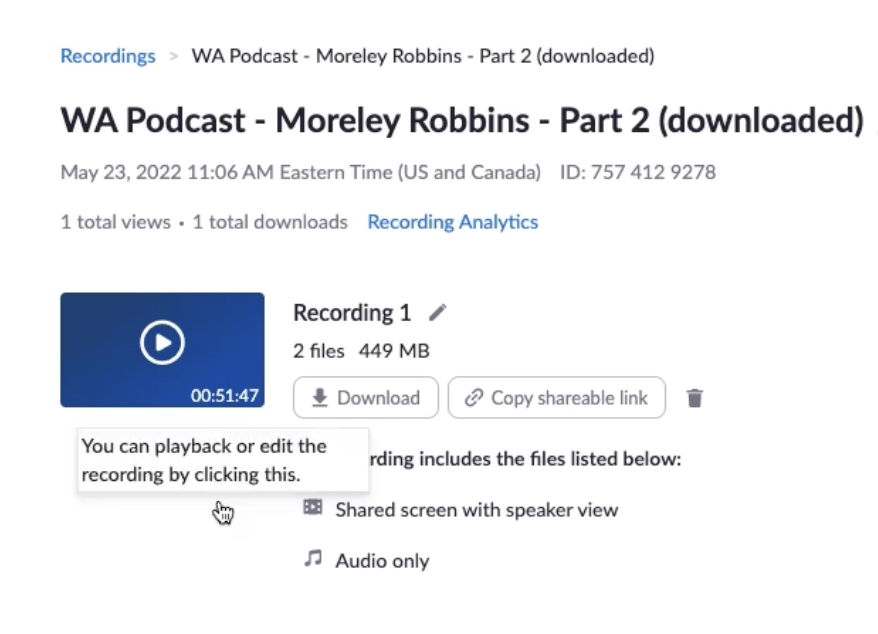
Step 3: Select a Recording
- Click on the recording you want to access.
- The recording details page will display: video with speaker, and an audio-only file.
Step 4: Download Audio/Video
Once you click on the recording, you can click on the Download button, or you can copy the link via email.
Step 5: Access and Download Transcript
- Zoom automatically generates transcripts for recorded meetings.
- On the recording details page, locate the Transcript file.
- Click Download to save the transcript to your computer.
- You can open the transcript for:
- Reviewing the meeting content without watching the video
- Creating training materials
- Sharing with team members who need the meeting dialogue
Step 6: Share or Use Files
- After downloading, you can send the video/audio/transcript files to the relevant team members.
- Use the transcript as reference material or for training purposes.
Social Media
1Facebook Ads Training
To ensure brand consistency and platform compliance, you are required to complete our Facebook Training before accessing or managing any company Facebook assets.
Please complete the full training at the link below:
2Facebook Training — Weekly Commitments
When you go to set your commitments each week, you will click on the "My Commitments" tab on the left hand side.
You will then click on the pencil button and put in your 3 commitments for the week. This will include your Goal and Action Items for each. Remember they need to be actionable, measurable, and specific. Once you have completed them, change the status of your commitment to completed.
3ManyChat Training
The training will cover platform navigation, flow building, triggers and conditions, tagging and segmentation, integrations, testing procedures, and escalation protocols.